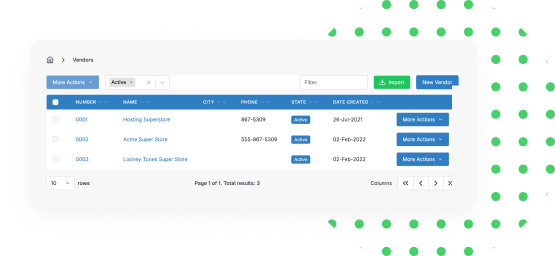
Expenses & Vendors
With Invoice Ninja, all sales, expenses, clients and vendors are stored and managed in one system.
- Easily Create & Manage Expenses
- Auto-Import Bank Transactions via Yodlee
- Auto-Import Bank Transactions via GoCardless
- Convert & Invoice Clients for Expenses
- Create Vendors & Organize Categories
- Expense Reporting, Vendor Statements
- Create Recurring Expense Profiles
- Support Marking Expenses as Logged or Paid
- Support Exporting Expenses & Vendors
- Bulk Assign Expense Categories
- Bulk Create Expenses from Transactions
Purchase Orders
Create Vendor Purchase Orders that convert to Expenses.
- Create & Email Purchase Orders to Vendors
- Convert Purchase Orders to Billable Expenses
- Track PO's & Converted Expenses per Vendor
- Run Profit & Loss Reports for PO's, Vendors, Expenses
- PO's can be Cloned to Create Invoices, Quotes, Credits
- Much more!
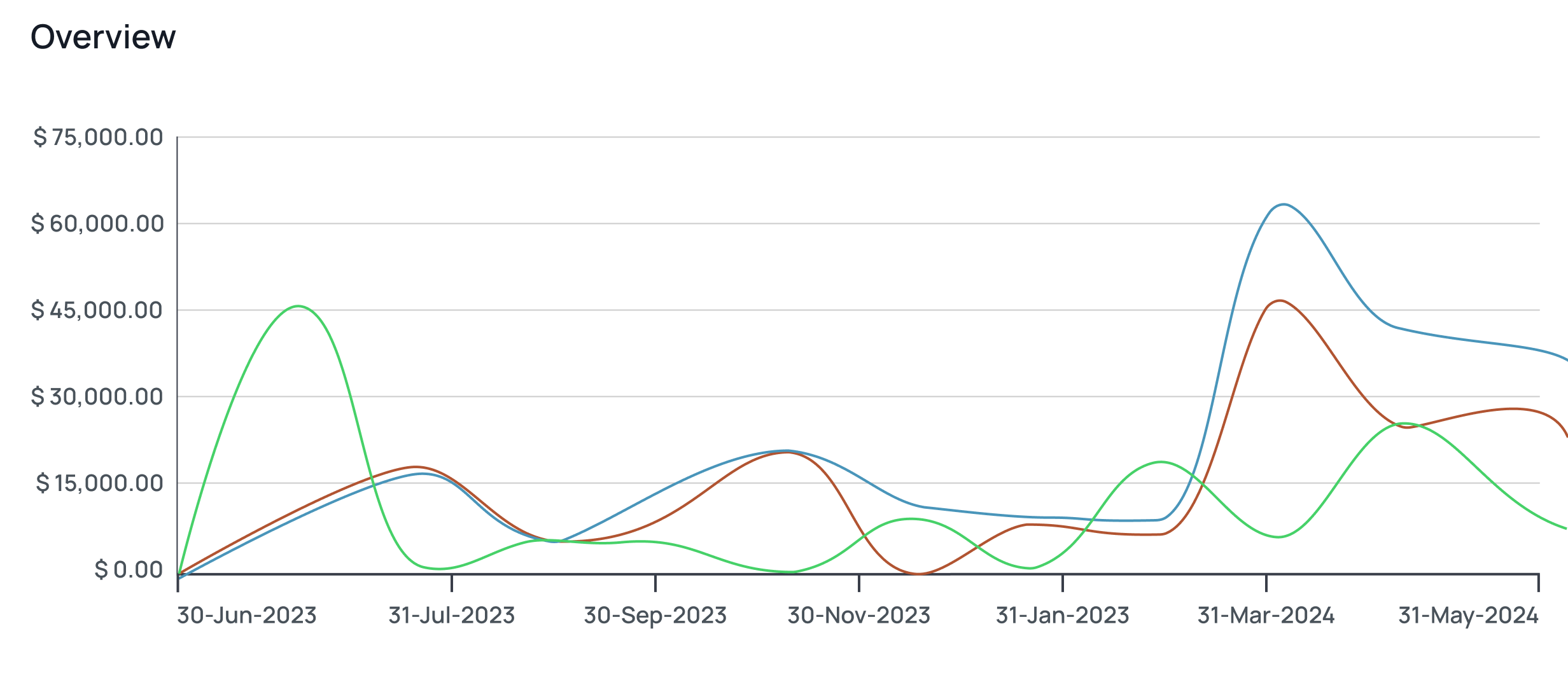
Expense Management Capabilities
Mark Expenses as Billable
Mark expenses as 'billable' and send to re-invoice with 1-click!
Recurring Expense Profiles
Set up ongoing recurring expense profiles to save time.
Reports, Aging & Statements
Understand the bigger financial picture with our report features.
Importing Expenses & Vendors
Automatically import your expenses data to your Invoice Ninja account.
Vendor Purchase Orders
Create Purchase Orders to email vendors. Approved PO's convert into expenses to rebill or log for reporting.
Banking Integration via Yodlee or Nordigen
With the Invoice Ninja + Yodlee and/or Nordigen integrations you can automatically import expenses & transactions from your bank accounts, credit cards, and PayPal.
Frequently Asked Questions
Everything you need to know about Invoice Ninja expenses.
Does Invoice Ninja offer an API?
Yes! As part of the Pro & Enterprise plans you have REST API access.
How do my clients pay their invoices online?
After integrating a payment gateway to your Invoice Ninja account, your clients will see a 'Pay Now' button on their invoices. The payment gateway processes the payment and your clients never leave their Invoice Ninja client-side portal. Subsequently the gateway deposits the money to your bank account. Invoice Ninja supports dozens of payment gateways.
How do I upload my company logo on invoices?
Navigate to Settings > Company Details, and click 'Logo' to upload or change your logo. This is available to all plans, including free!
Do you offer a client-side portal for my clients?
Yes, all your clients have access to a client-side portal to view their invoices, payment history, documents, and more. Your clients can also update their payment details on file for recurring invoices with auto-billing.
Can I add more users but limit what they see or do?
Yes, the Enterprise plans allow you to add up to 50 additional account users! You can adjust user permissions to create/edit/view only.
Can I run reports & year-end P&L's?
Yes, as part of the Pro & Enterprise plans you have access to a robust reporting module to create custom reports within calendar/date parameters you define.
How do I integrate with Zapier?
After upgrading to Pro or Enterprise, navigate to Settings > Account Management, and click 'Zapier'.
Let's Connect!

Ninja Support Forums
Connect with thousands of Invoice Ninja users on our community forums.
Launch Forums!